Implementing Push Notifications in Flutter with Firebase


Fasil Getie
October 24, 2024
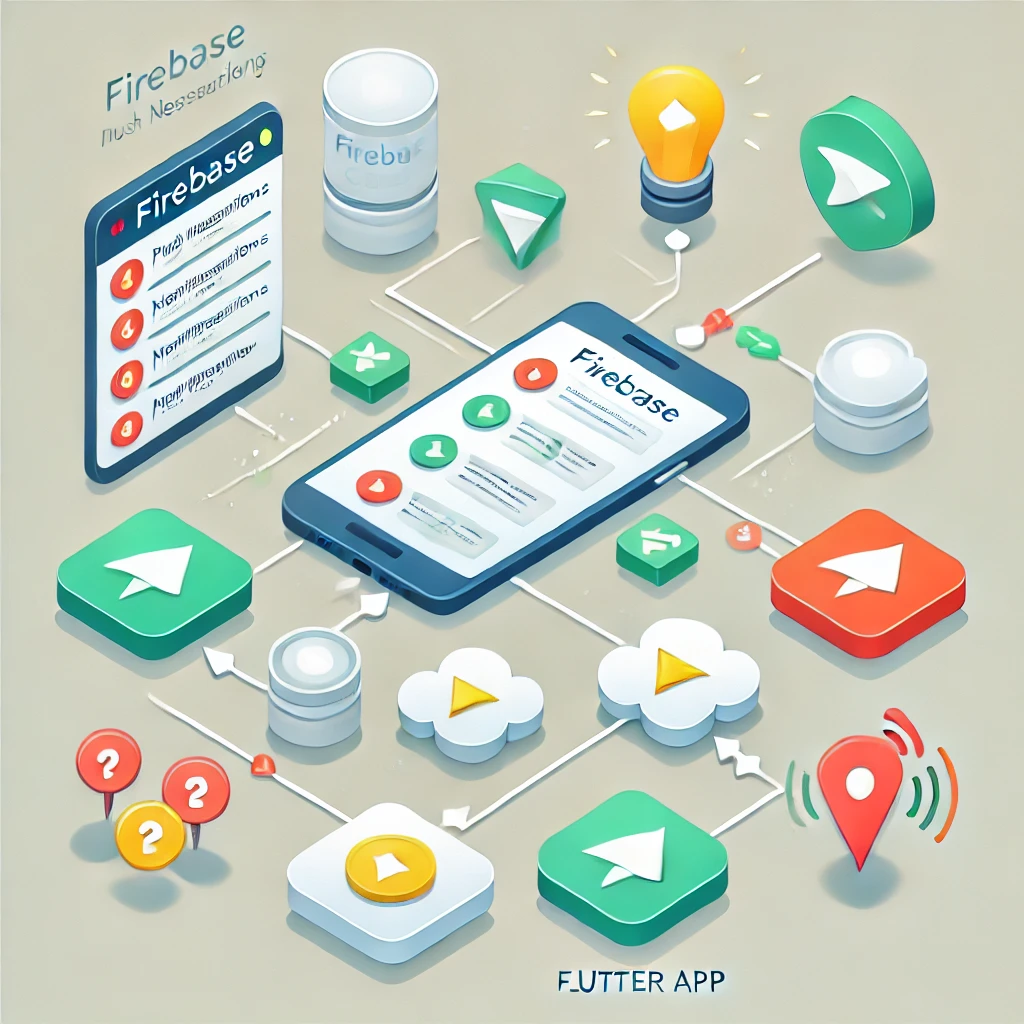
Push notifications are a crucial aspect of mobile applications, keeping users engaged by delivering timely updates. In this blog post, I’ll walk you through how to implement push notifications in your Flutter app using Firebase Cloud Messaging (FCM).
Head over to the Firebase Console, create a new project, and follow the steps to set up Firebase for your app.
google-services.json (for Android) or GoogleService-Info.plist (for iOS) and place them in the appropriate folders in your Flutter project:
android/app/ for google-services.json.ios/Runner/ for GoogleService-Info.plist.In your Flutter project, add the necessary dependencies for Firebase:
dependencies:
firebase_core: latest_version
firebase_messaging: latest_version
Then, run flutter pub get to install the packages.
Firebase Cloud Messaging takes the complexity out of delivering notifications to users at the right time. It gives developers powerful tools to engage users while ensuring seamless integration with mobile apps.
David East, Firebase Developer Advocate
To integrate Firebase into your Android app, update the following files:
Add the classpath to the project-level build.gradle:
Apply the plugin in the app level build.gradle:
classpath ‘com.google.gms:google-services:latest_version’ apply plugin: ‘com.google.gms.google-services’
For iOS, make sure you have the necessary permissions by modifying the Info.plist file:
<key>UIBackgroundModes</key>
<array>
<string>fetch</string>
<string>remote-notification</string>
</array>
<key>FirebaseAppDelegateProxyEnabled</key>
<false/>
Run the following command to ensure the Firebase SDK is set up correctly:
flutter pub run flutterfire configure
In your main.dart, initialize Firebase before running the app:
void main() async {
WidgetsFlutterBinding.ensureInitialized();
await Firebase.initializeApp();
runApp(MyApp());
}
Now, set up Firebase Messaging for handling push notifications:
import ‘package:firebase_messaging/firebase_messaging.dart’;
class PushNotificationService {
final FirebaseMessaging _fcm = FirebaseMessaging.instance;
Future<void> init() async {
// Request permissions for iOS
NotificationSettings settings = await _fcm.requestPermission();
if (settings.authorizationStatus == AuthorizationStatus.authorized) {
print(‘User granted permission’);
} else {
print(‘User declined or has not accepted permission’);
}
// Handle foreground messages
FirebaseMessaging.onMessage.listen((RemoteMessage message) {
print(‘Received a message while in the foreground!’);
print(‘Message data: ${message.data}’);
if (message.notification != null) {
print(‘Message also contained a notification: ${message.notification}’);
}
});
}
}
Use Firebase Cloud Messaging to send push notifications. You can test it by going to the Firebase Console -> Cloud Messaging -> New Notification and sending a test notification.
You can also handle notification taps and background messages using these Firebase callbacks:
FirebaseMessaging.onMessageOpenedApp.listen((RemoteMessage message) {
print(‘Notification clicked! ${message.data}’);
});
FirebaseMessaging.onBackgroundMessage(_firebaseMessagingBackgroundHandler);
Future<void> _firebaseMessagingBackgroundHandler(RemoteMessage message) async {
print(“Handling a background message: ${message.messageId}”);
}
To send notifications to specific users or topics, you can use Firebase’s backend service or a custom backend setup with Firebase Admin SDK.
Here’s an example of how you can send a push notification to a specific device:
curl -X POST -H “Authorization: Bearer YOUR_SERVER_KEY” -H “Content-Type: application/json” \
-d ‘{
“to”: “DEVICE_TOKEN”,
“notification”: {
“title”: “Hello!”,
“body”: “You have a new notification”
}
}’ \
https://fcm.googleapis.com/fcm/send
Integrating Firebase push notifications into your Flutter app is essential for engaging your users. With Firebase Cloud Messaging, you can ensure that your app users receive timely updates, whether the app is in the foreground or background.
“Implementing push notifications in your Flutter app can significantly improve user engagement by delivering timely updates. With Firebase, you have a reliable and scalable platform to manage these notifications with ease. If you haven’t already, start experimenting with Firebase Cloud Messaging in your Flutter apps and see the difference it can make!”
Feel free to leave any questions or feedback in the comments section below. Let’s keep building great apps together!